
Understanding Two-Factor Authentication
What it is, why banks require it, and how to use SMS codes and authenticator apps. Doesn't have to be complicated — we'll break it down.
By
Sabracommunications Editorial Team
Written by the sabracommunications Editorial Team, focused on practical, easy-to-follow guidance for safe online shopping and mobile banking.
Why You're Seeing This Screen
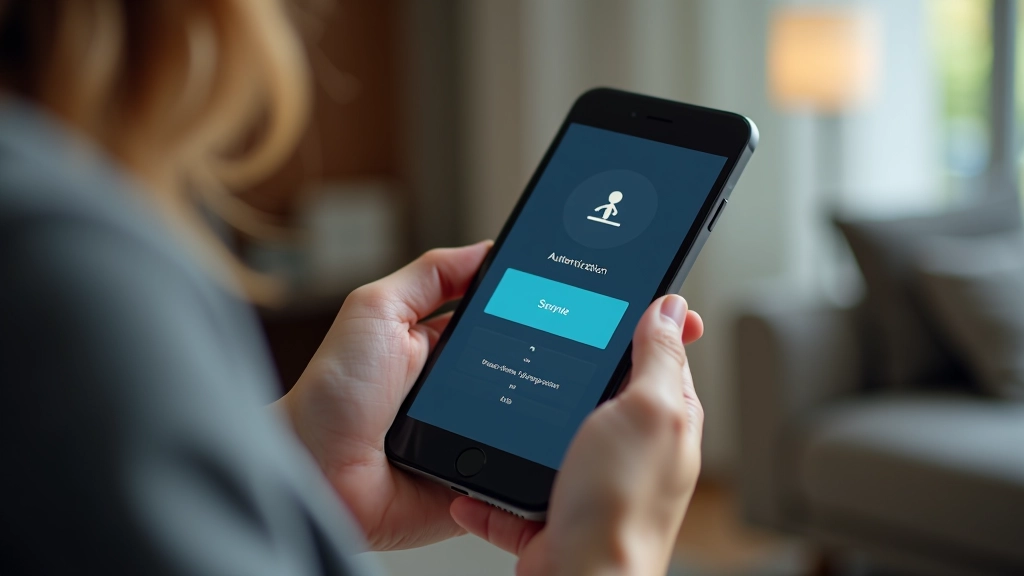
If you've logged into your bank recently, you've probably seen a request for a code. It might've arrived as a text message, or you grabbed it from an app on your phone. That's two-factor authentication at work — and it's genuinely one of the best security tools you've got.
Here's the thing though: it's not just banks doing this anymore. You'll run into two-factor authentication on email accounts, social media, shopping sites, basically anywhere that cares about keeping your account safe. Understanding how it works takes maybe five minutes, and once you get it, there's nothing to be worried about.
The Basics
Two-factor authentication means you need TWO different ways to prove who you are. Your password is one. A code from your phone is the other. Together, they make it way harder for someone else to get into your account.
What Actually Happens
Here's how it works in practice. You type your username and password like normal. The bank checks them — good so far. Then instead of letting you straight in, it says "wait, I need to make sure this is really you." So it sends a code to your phone. You type that code in, and boom — now you're logged in.
That second step is what makes it "two-factor." You've proved who you are in two ways: something you KNOW (your password) and something you HAVE (your phone). Even if someone figured out your password, they couldn't get in without access to your actual phone. That's the whole point.
The security boost is real. A password by itself? Someone could crack it, guess it, or find it in a data breach somewhere. But two-factor authentication? That requires an attacker to have both your password AND your physical phone. That's exponentially harder.
Two Main Ways You'll Receive Codes
SMS Text Messages
Your bank sends a code via text. You get a message like "Your code is 847392" and you type it in. It's the most common method and honestly? Super straightforward. You don't need to download anything or set anything up beyond what you already have — just your phone.
- No app installation needed
- Works on any phone with texts
- Code typically valid for 10 minutes
Authenticator Apps
You download an app like Google Authenticator or Authy. When you try to log in, you open the app and grab the 6-digit code it's showing. It's slightly more secure than SMS because hackers can't intercept a text message they never see. The code changes every 30 seconds, which keeps things fresh.
- More secure than SMS
- Works offline — no internet needed
- Code refreshes every 30 seconds
How to Use It Step by Step
Log In Normally
Go to your bank's website or open their app. Enter your username and password like you always do.
Wait for the Code
The screen will say something like "Check your phone for a code" or "Open your authenticator app." You'll either get a text message or need to open an app on your phone.
Enter the Code
Look at the code on your phone (6 digits usually) and type it into the box on the login screen. Don't share this code with anyone — it's just for you.
You're In
Hit submit or press enter. The system verifies your code and logs you in. That's it. You're done.

Continue Learning
Related guides on keeping your accounts secure

Getting Started with Mobile Banking Apps
Step-by-step walkthrough of downloading, setting up, and using your bank's mobile app safely.
Read Guide
Safe Online Shopping Checkout Process
Recognize trusted payment methods, understand security badges, and protect your information when shopping online.
Read Guide
Creating Strong Passwords and Using Password Managers
Learn what makes a password secure, why you shouldn't reuse them, and how password managers can help.
Read GuideThings to Remember
Never Share Your Code
A bank employee will never ask for your two-factor code. If someone messages you asking for it, that's a scam. Your code is just for you.
Keep Your Phone Safe
Your phone is your second factor now. Treat it like you'd treat your wallet. A password lock on your phone is smart. So is not lending it to people you don't trust.
Codes Expire Fast
SMS codes usually work for about 10 minutes. Authenticator app codes refresh every 30 seconds. Don't worry if one expires — you can always request a new one.
Save Your Backup Codes
When you set up two-factor, you'll usually get backup codes. Store these somewhere safe (not on your phone!). They let you log in if you lose your phone.
Apps Work Without Internet
Authenticator apps don't need an internet connection. They generate codes locally on your phone, which makes them work even if you're in a place with no signal.
It Gets Faster
The first time feels slow. After you've done it a few times, it becomes automatic. Grab code, type code, done. Takes maybe 20 seconds total once you're used to it.
SMS vs Authenticator Apps: What's the Difference?
Both methods work. Both are significantly more secure than just a password. Here's how they actually compare when you're using them day to day.
Just your phone number. Done in seconds.
Download an app, scan a QR code. Takes a couple minutes.
Code arrives automatically. You just wait and enter it.
You open the app to grab the code. One extra step.
Good. Hackers can theoretically intercept texts, but it's rare.
Stronger. Code is generated on your phone, not sent over networks.
You can still log in with backup codes. A new phone gets a new number eventually.
You'll need backup codes to get back in. Install the app on a new phone after you do.
It's Actually Simpler Than It Sounds
Two-factor authentication isn't some complicated technology. It's just a second checkpoint — one more thing that proves the person logging in is actually you. You've got your password. You've got your phone. That's it. That's the system.
Your bank isn't making you do this to be annoying. They're doing it because a hacked password is bad, but a hacked account where someone also needs your physical phone is exponentially harder. And honestly? That's worth entering a six-digit code for.
The first time you use it might feel a bit clunky. But after a handful of logins, it becomes muscle memory. Grab code, enter code, done. You'll barely think about it.
Disclaimer
This article is educational only and is not financial or investment advice. Outcomes are not guaranteed and may vary. Always follow your bank's specific instructions and contact them directly if you have questions about your account security.