

Safe Online Shopping Checkout Process
Recognize trusted payment methods, understand security badges, and protect your information when you shop online.

Your bank's app isn't as complicated as you might think. We'll walk you through downloading, setting it up, and using it safely — step by step.
Written by
Editorial Team
Focused on practical, easy-to-follow guidance for safe online shopping and mobile banking.
Mobile banking apps are designed to make your life easier. You can check your balance at 2am, transfer money in seconds, and pay bills without logging into a website. Most banks now offer these apps free — and they're safer than you'd expect.
The first time you open it might feel overwhelming. All those buttons, options, and features. But honestly, you'll use about three things regularly: checking your balance, viewing transactions, and sending money. Everything else is bonus.
Check balances and transactions anytime, from anywhere
Banks invest heavily in app security — it's often safer than websites
Send money, pay bills, or set up transfers in under a minute
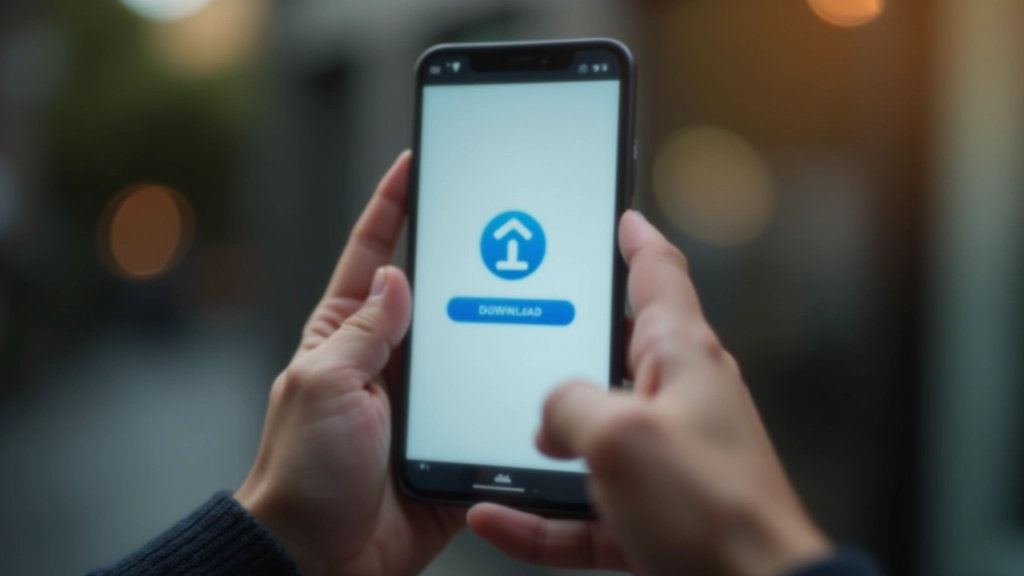
This part's straightforward. Your bank has an official app — and it's free.
iPhone users go to the App Store. Android users go to Google Play. Both are built into your phone.
Type your bank's exact name. You'll see the official app — it'll have your bank's logo and a verification badge.
The app downloads automatically. On iPhone, you might need to confirm with Face ID or your Apple ID password.
This takes 30 seconds to a few minutes depending on your internet. When it's done, you'll see "Open" instead of "Get".
Pro tip: Don't trust apps that pop up in random search results. Your bank's official app will have the bank's name, their logo, and usually a verification badge (a checkmark or blue badge). When in doubt, visit your bank's website to find the correct app link.
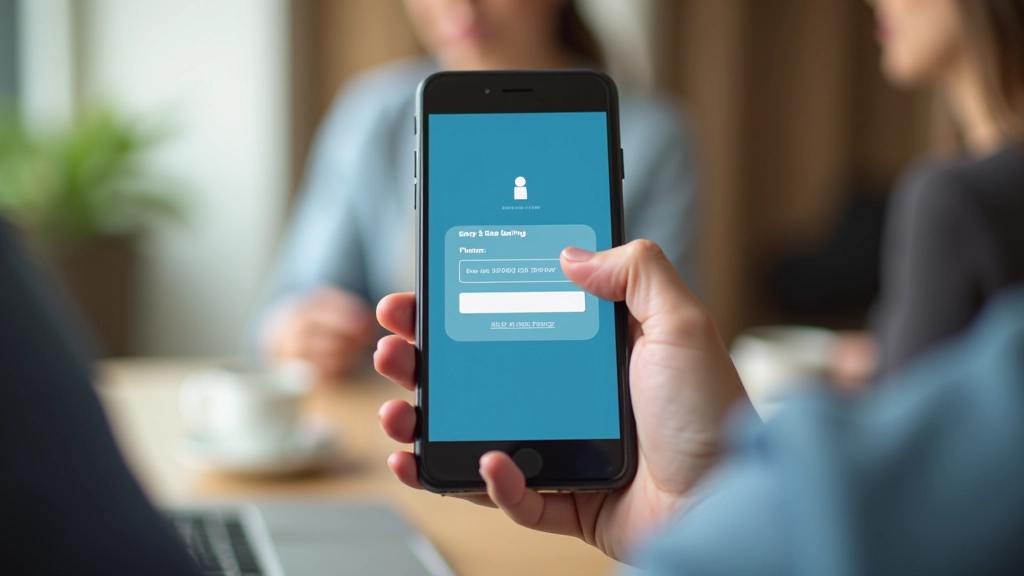
When you open the app for the first time, it'll ask you to log in. You've got two options depending on whether you're a new customer or already have an account.
You'll use the same username and password you use for online banking on a computer. If you've forgotten these, most banks have a "Forgot Username" or "Forgot Password" link. Click it, and they'll walk you through recovery — usually by confirming your identity through email or security questions.
Look for a "Sign Up" or "Register" button. You'll provide your ID, account details, and create a username and password. This takes about 5 minutes. After that, you're ready to use the app.
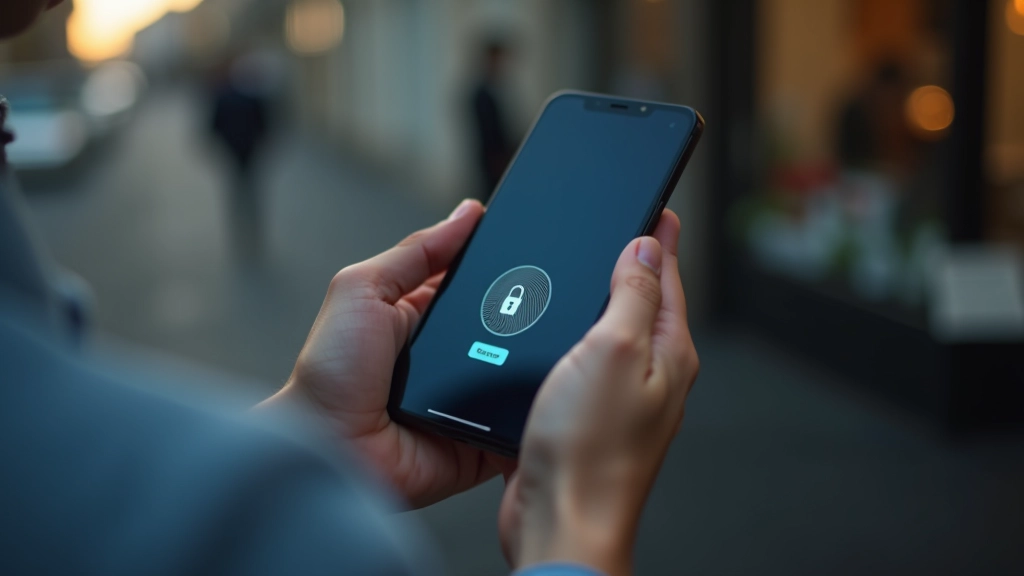
Once you're logged in, most banks recommend setting up biometric login — that's Face ID or fingerprint. It's faster than typing your password every time, and it's actually more secure. You'll usually find this in Settings or Security. Enable it if your phone supports it.
Your app probably has 10+ features. Here's what you actually need to know about:
Usually the first screen you see. Shows your current balance and recent transactions. This updates in real-time or within a few minutes of any activity.
Send money between your own accounts or to someone else's account. You'll need their bank account details. Most transfers take 1–3 business days.
Tap on any transaction to see details: who you paid, when it cleared, and the exact amount. You can usually filter by date or amount.
Some apps let you pay bills directly from the app. You'll enter the company's details once, then you can schedule recurring payments or pay one-time bills.
Settings for biometric login, two-factor authentication, and spending limits. This is where you can change your password or enable alerts for large transactions.
Most apps have a help section or live chat. If something doesn't work, tap Help or Contact Us. You'll usually get a response within a few minutes.
Now that you've got the app set up, here are the next steps to stay secure online.
Recognize trusted payment methods, understand security badges, and protect your information when you shop online.
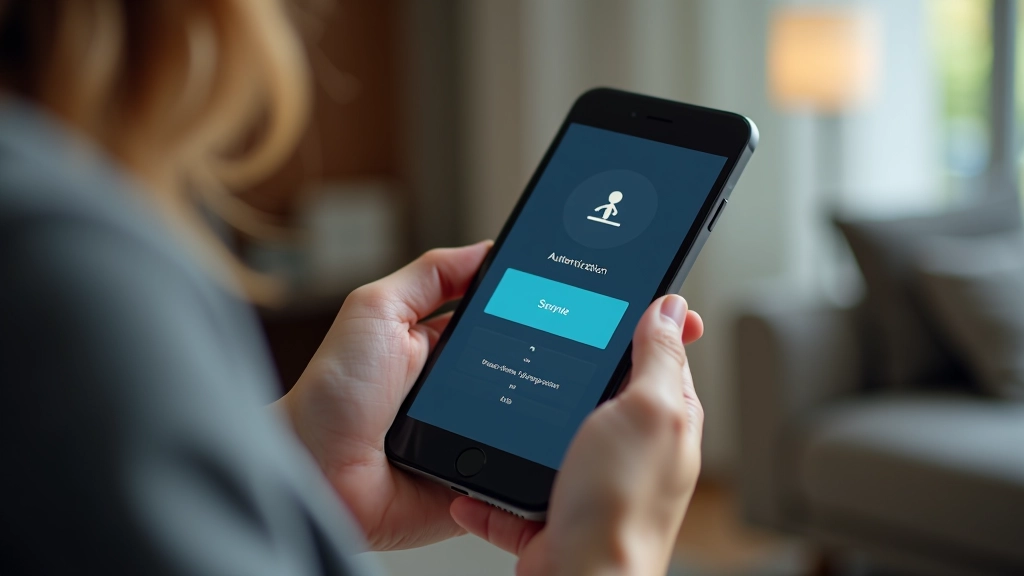
What it is, why banks require it, and how to use SMS codes and authenticator apps safely.

Learn what makes a password secure, why you shouldn't reuse them, and how password managers keep you safe.
Don't panic. Every banking app has a "Forgot Password" link. Click it, and you'll verify your identity through email or security questions. You'll get a temporary password, then you can create a new one. The whole process takes 5 minutes.
Banks update their apps regularly. If things look different, don't assume you're in the wrong place. Look for a menu icon (three horizontal lines) or a Settings option. Most important features are grouped logically — balance info is together, transaction history is together, and so on.
Transfers between banks usually take 1–3 business days. Transfers within the same bank are often instant. If you send money on a Friday evening, it won't arrive until Monday. Always plan ahead for important payments.
Your bank's app is encrypted and monitored constantly. It's usually safer than using a public WiFi computer. Don't share your password, don't respond to texts claiming to be from your bank asking for login details, and you're golden.
You've got the app set up. Now let's make sure it stays secure. This isn't paranoid — it's just common sense.
That's really it. Download the app, log in, and you're done. You don't need to understand everything on day one. Open the app, check your balance, and explore. After a week, it'll feel completely natural.
The biggest benefit isn't the convenience — though that's nice. It's control. You'll see every transaction the moment it happens. You'll notice fraud instantly. And you'll never be stuck without access to your account again. That peace of mind is worth the five minutes it takes to set up.
Still have questions? Your bank's support team is just a tap away. They've helped thousands of people get started, and they're genuinely patient. You've got this.
Educational Information
This article is educational only and is not financial or investment advice. Banking procedures, app features, and security practices vary by institution and region. Outcomes are not guaranteed and may vary. For specific guidance about your bank's mobile app, contact your bank directly. Always verify you're using your bank's official app from the official app store before entering login credentials.